


In the UNIX world, a job refers to a command or group of commands sent to the shell for execution. The job exists so long as the shell is either executing it or keeping track of its status. A job will be in one of two palces after given to the shell, the forground or the background. If a command is entered on the command line like the following:
% gcc -g -o myprog myprog.c
the user will be left to watch the compile take place without being
able to use the terminal (of course with xterms this isn't really a
problem).
This command was executed in the foreground.
For most commands, like cd or ls, this is not a real
inconvenience, but many tasks can take a great deal of time and leave
the terminal unusable until they have completed (or at least terminated).
A job executed in the background will not use the terminal, it will
simply execute out of sight.
The simplest way to put a job in the background is to palce an
ampersand (&) following the command on the command line:
% find / -name june_report.ps -print >& find.log &
Jobs can be placed in the background in a couple of other ways as
well.
A job can be placed in the background using the bg command
followed by the name of the job.
If a job is started in the usual fashion in the foreground, it can be
stopped using the Control Z (^Z) sequence, and then moved to the
background to continue execution using the bg command.
The following sample session fragment demonstrates moving a
grep job into the background in this fashion:
% grep ``normb'' one_huge_log.file >& grep.info
^Z
Child exited
% jobs
[1]    Running                  xclock -d -update 1
[2]  + Child exited             grep ``normb'' one_huge_log.file
% bg %2
%
This example warrants a few explanations.
First, jobs is a C shell command that gives a list of
background jobs.
The number in brackets is the ID of the job and the plus sign beside
the grep job indicates it is a current job (a minus sign would
indicate a previous job).
Second, jobs are refered to by their ID number preceded by a percent
sign.
The references to %2 refer to the grep job.
The first job [1] is just an xclock that had been started in
the background eariler in the session.
It can also be seen that the shell issues a notice that a child
process (of the interactive shell) has been exited or stopped.
It is also important to keep in mind that both the grep and
find commands used in the previous examples send their output
to stdout by default and so if the output is not redirected to a file
(or device) it will echo back to the terminal, defeating the purpose
of putting the job in the background.
In both examples the stderr has also been redirected.
Some situations may arise when the user will want stderr to remain
directed to the screen to monitor errors that would otherwise go
unnoticed until analysis of the log file or other output.
This will especially be the case when compiling large and complicated
programs or packages.
To stop a job in the background, the stop command followed by
the job ID number can be used.
It may be the case that the user would like to bring a background job
to the foreground.
An example of this is emacs.
In emacs, the ^Z character will stop emacs and set it in the
background in it's stopped state.
To resume work in emacs it must be brought to the foreground.
This is done with the fg command.
By itself, fg will bring the last job placed in the background
to the foreground.
Usually fg will be given a job ID as an argument.
To kill a background job (i.e. terminate it) the kill command
must be used with the -9 (terminate process) option.
To kill a background job, the same basic idea as the previous examples
holds.
The following script presents a user friendly interactive prompting
environment for killing processes:
#!/bin/csh
#
# BSD Version (SunOS)
# Interactive process killer
#
# Usage: killp [pattern]

unset notify
if ($#argv > 0) then
   set joblist="`ps | grep $argv[1] | grep -v grep`"
   set counter=1
else
   set joblist="`ps`"
   set counter=2
endif

while ($counter < $#joblist)
   set temp=($joblist[$counter])
   set proc_id=$temp[1]
   set proc_name=($temp[5-])
@  counter++

   if ($proc_id == $$) then
      continue
   endif
   echo "Kill $proc_name ? [y|n|q]"
   set response=$<
   switch ($response)
   case y:
      kill -9 $proc_id >/dev/null
      breaksw
   case n:
      breaksw
   case q:
      exit
   default:
      echo "Response not understood"
@     counter--
   endsw
end
Rather than refer to the jobs by their job ID, the script uses the UNIX
ps command to get their process ID's and kills them using that.
The reason for using ps rather than jobs is to provide a
more general script that works in multiterminal (such as X11)
environments.
The jobs command will only present jobs placed in the
background from the current terminal.
The ps command will show all processes whether they are in the
background or foreground on any terminal so long as the owner of the
process is the current user.
The above script from the example will behave noticibly different
depending on the setting of the notify environment variable.
If notify is set, the script will immediately echo back to the
terminal the message that a process has been killed when ever a
process is chosen to be killed.
This does not affect the over-all performance of the script but it will
make for a confusing looking screen with prompts for the user mixed
with messages from the shell.
The only way to rectify this problem is to unset the notify
variable.
Unsetting this variable will make the shell wait until the next
command line prompt before echoing job related messages.
One last point should be made, and that is that referring to jobs
is not restricted to the use of the %n format described above.
Table 4.9 contains the job referencing operators
provided by the C shell:
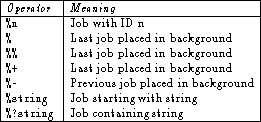
Table 4.9: Job referecing operators in the C shell.