EDIT202 – Web
Page Lab
Creating the File Cabinet
|
1.
Open the Homework.docx
file in Microsoft Word and add the
details for the three different homework assignments. Remember to add the same three assignments
as you did for the Homework
Announcements step in the previous page of the instructions (you should
be able to just copy and paste). Be sure to save the file and not rename it. |
|
2.
Create link to class File Cabinet. Teachers can use this File Cabinet to share files with
students, it provides a file listing which students can access at any time to
download important classroom documents. To
complete this step you will need to access the following files from your Needed Files. ·
Homework List - Homework.docx (Be sure to use the one that was just updated) ·
Field Trip Permission Form - FieldTrip.pdf ·
Lecture Slides –UsingYourPowersResponsibly.pptx Note: You will NOT have to edit the FieldTrip.pdf
file or the UsingYourPowersResponsibly.pptx
before uploading them to your file cabinet. |
·
To begin adding your classroom file cabinet click
on the New page button located in
the upper right hand corner of your site page.

·
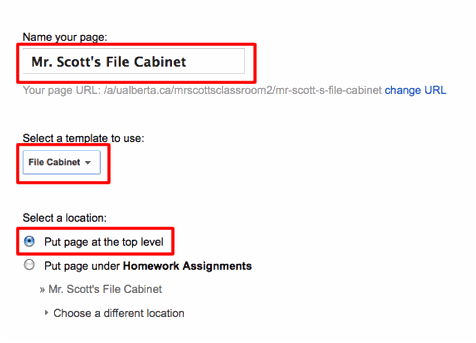
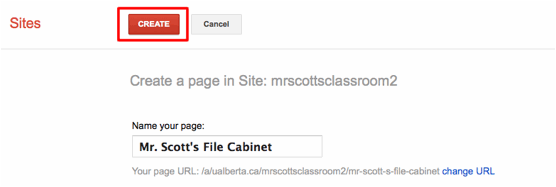
After clicking on the New page button
the template selection window will
appear. Select the following
options and click on the Create
button.
o
Type in a new name for your page in the Name your page: text field
o
Select the File Cabinet
template
o
Select the Put page at the top
level radio button
·
After click on the Create
button
}
·
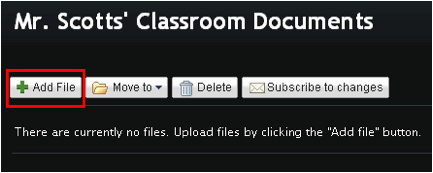
the
following File Cabinet page will
appear.
·
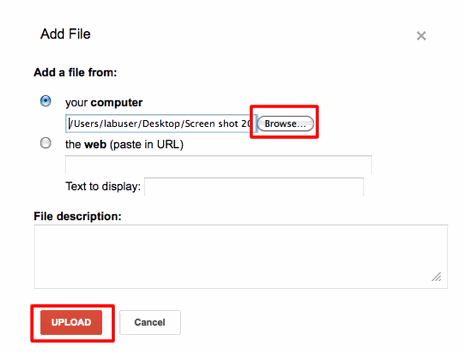
To add a file to the classroom file cabinet click on the Add File button as shown above. The Add File window will appear. To upload a file perform the following
steps
o
Click on the Browse… button
and select the correct file from your needed
files folder located on the desktop.
o
Click on the Upload button.
·
After clicking on the Upload
button you should now see the file available in your file listing as shown
below
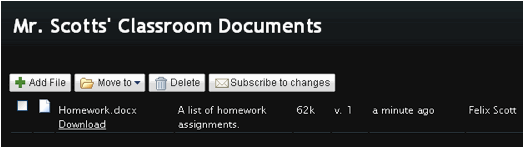
·
Repeat the above steps and upload the remaining file to your classroom
file cabinet.
·
You are now ready to move on to the next page
of instructions, finishing your site.
Steven Scott & The EDIT 202 Development Team
University of Alberta