EDIT202
– Web 2.0 Lab
 Assignment
Guidelines – Creating a Protopage
Assignment
Guidelines – Creating a Protopage
|
1. To create the protopage
you will be using for this assignment first launch a web browser and go to
the following website: |
·
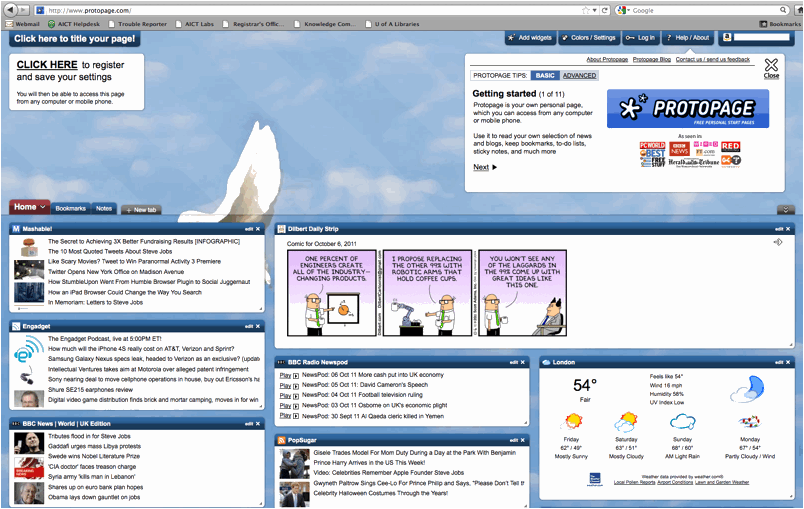
Once you have
launched a browser and typed in the address http://www.protopage.com you should see a screen similar to the one shown
below.
|
2. In order to create your protopage
site first you will have to create an account. Please
note that to create your protopage site you will
need access to email. Once your
account has been created you will be sent a confirmation email with a link to
activate your site. |
·
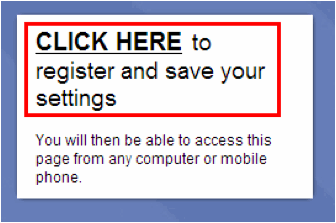
To create your account
click on the following link to begin.
·
This will bring
up the account activation window.
Where you will be prompted to type in information about your new protopage. Type
in the information as follows:
Please note that it is
recommended that you use your Google account information to register for protopage.
1. Choose a name for your Protopage
www.protopage.com
/ slscott
2. Choose a password **************
**************
3. Enter your name and email to receive your Protopage activation link
Name:
your name here
Email:
your Gmail address here
4. Content localization
This information is optional
5. Terms and Conditions agreement
Be sure to read the Terms and
Conditions and click to place a checkmark in the available checkbox.
·
Once all the
above information has been entered click on the following link:

·
After clicking on
the above link you will be prompted with a new screen offering to invite people
to protopage.
To finally send the email you can leave the invitation section blank
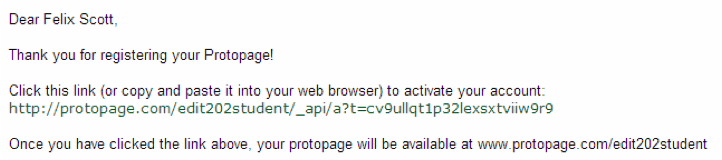
click on the available link and proceed to check your email for the activation
email.
·
Click on the
available link to activate your protopage and you
should see your newly created protopage in a brand
new browser window.
|
3. Delete all “widgets” from the page. |
· A widget inside protopage
takes the form of a window. These
widget windows have been linked to an available RSS feed. You are
removing the default ones provided by protopage to
make space for ones you will be creating.
· To delete a widget from your protopage
click on the “X” provided in the widget window.

· Once you click on the “X” you will be prompted with
the following confirmation window:
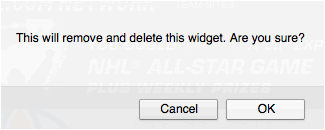
· Click on OK
to delete the widget. And then proceed to delete all widgets from your page
(and no there is no way to delete the widgets all at once).
|
4. Add an appropriate page title such as “My Edit 202 Protopage”. |
· To add a page title single click inside the Protopage title bar and click and drag to select the text
as shown below:
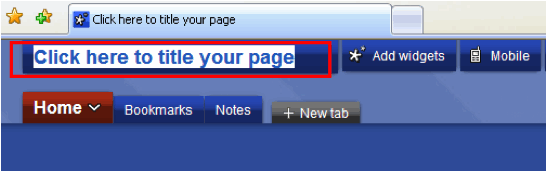
· Delete the old title, type in your new title and click
outside the title box. This should
title your page on your protopage site and your top
browser bar.

|
5. Using the “Add
widgets” toolbar add the following widgets to your page (Be sure to add
one of each): ·
One audio feed ·
One video feed ·
One news feed |
·
To add a protopage widget (linked to an RSS feed) single click on
the Add widgets link located at the
top of the page.
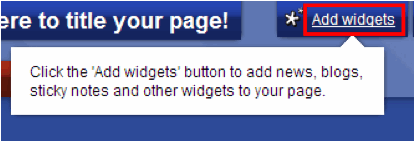
· This will bring up the following widgets window:
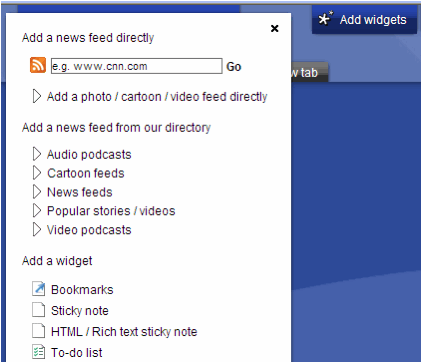
· To add a certain feed from a chosen category click on
that category link as shown below:
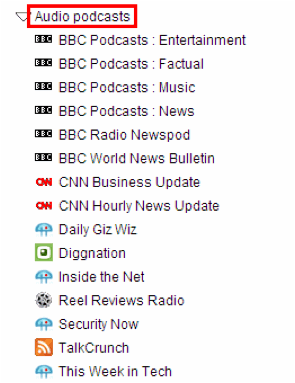
· To choose a selected feed click on one of the
available feed links.
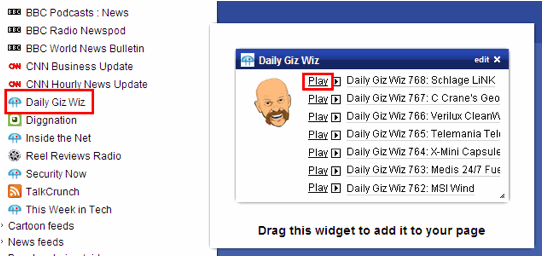
· Due to the fact that this is an audio feed to preview
you can click on one of the available Play
links. If you do this you will have
to use the audio playback tool to pause or stop the podcast.
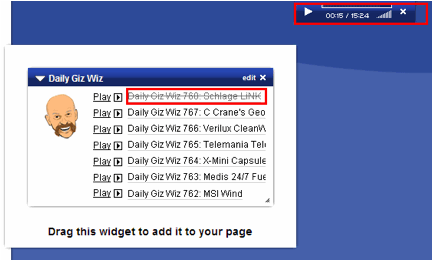
Please note that link to the podcast you have previewed
will now appear to have a strikethrough as shown above.
· Continue previewing until you have found a podcast you
like and click to add on the title bar to add the widget to your page.
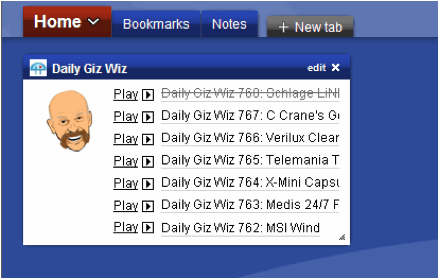
· Protopage offers three columns on your page for placement of
widgets. Pick any column you like
and place the widget on your page.
|
6. Add a Web Page widget to display a website related
to your overall topic. |
· To add the Web Page widget select it from the
available widget list and click and drag to place it anywhere on your protopage.
· Then to add the website address click on the edit button.
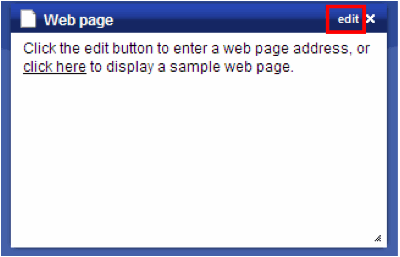
· Type in the address for your page and click Save.
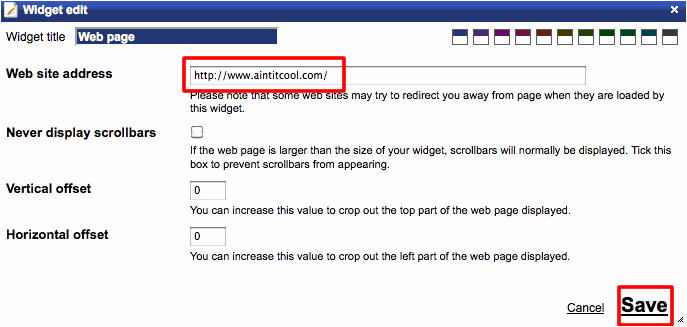
· A preview of your website should now be displayed on
your protopage.

|
7. Add a link to an outside feed. For this step it is
difficult to write the instructions as it relies on you (the person
completing this lab) to find a page that has produced an RSS feed so that it
can be copied and pasted into your protopage. So please consider the following steps
as more guidelines then actual rules (nerd credit is given to anyone who
recognized this as a quote from the first Pirates of the Caribbean movie). |
·
To add a link to
an outside RSS feed you will need to
open a browser and find a site that offers RSS
content. A good way to find out if
the site you want to subscribe to has an RSS feed is simply to perform a web
search. One way of performing that
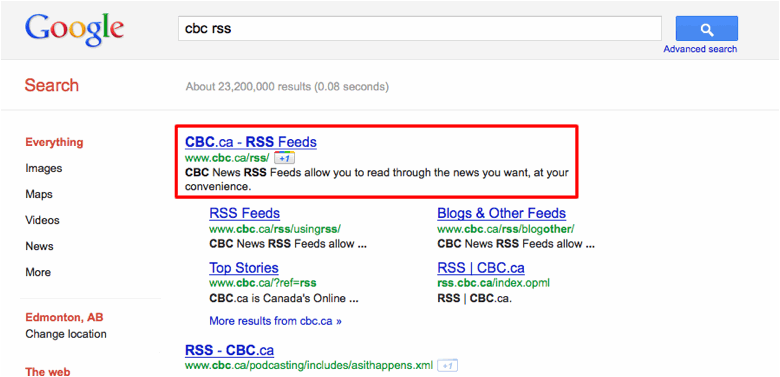
search is enter the name of that site into a search engine and add RSS to the end of your search. So to search for an RSS feed for the Canadian
Broadcasting Corporation (a Canadian news service) you might type in the
following search.

·
If this site does
offer an RSS feed (as a prominent news service you expect it would in this
case), your search should return a site that would offer link to that feed or a
set of feeds which you can copy and paste into your protopage
site.
Globe and Mail
Edmonton Sun
Edmonton Journal
CBC
National Geographic
National Geographic
Kids

·
To add the feed
link first delete the sample feed link to CNN.com and paste in the link to new
feed as shown above (Remember you can use the CTRL+V hotkey to paste).
·
Once you have
pasted in the link click on the Go button. This will bring up the following window
linking to the RSS feed.
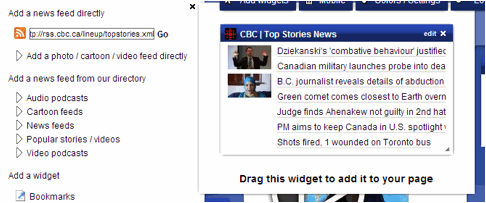
· Click and drag on the blue bar to place the widget on
your page.
|
8. Copy and paste the RSS feed from your blog into a
new widget for your protopage. |
· If it is not already open, in a new browser window
open the blogger website at http://www.blogger.com and Sign In
to your account.
· With your account open click on the Dashboard link in the upper right hand
corner of the blog interface.

· To open your blog click on the View Blog link for your chosen blog.
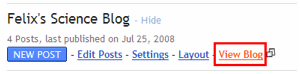
· At the bottom of your page near your first post you
should see the following link to the available RSS feed for your blog:

· Click on the Subscribe
to: Posts (Atom) link and this will open the feed browser window.
· Copy the RSS feed address for your protopage.
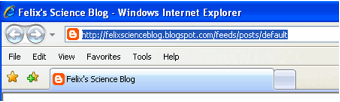
· Paste the link into the protopage
news feed address and click and drag the new widget to your protopage.

|
9. Ensure your Protopage is
set to public. |
·
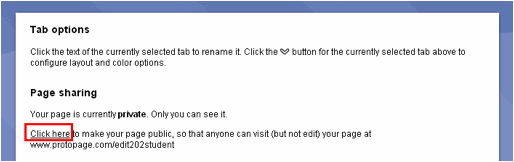
To make sure your Protopage is set to public so it can be marked click on the drop-down button
as shown below:

·
To make your page public single click on
the link shown below. Once this is
done you can close your tab.
|
10.Submit your Web 2.0 lab by copying and pasting the
link to your protopage in the assignment submission
window in WebCT. |
·
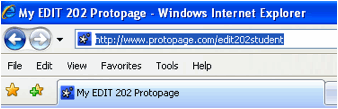
To submit your
lab copy the address to your protopage in the browser
address bar.
·
Open your Moodle
site and paste the link into your Web
2.0 Assignment Submission section of assignment submission window and click
on Submit.

©Steven
Scott & EDIT 202 Development Team
University
of Alberta