EDIT202
– Web 2.0 Lab
 Assignment
Guidelines – Creating a Blog
Assignment
Guidelines – Creating a Blog
|
1. Before you can start
creating your blog you will need to activate your blog by using your
University of Alberta log in information. Due to the fact that Blogger.com is a Google product you
will not have to create a new account to use this service. To use the service all you need to do
is log in with your existing U of A
login information. |
· To activate your account open a web browser and type
in the following address:
· Once you have arrived at the above site, you will see
the following log in screen. To
activate your account type in your U of A ID and password and click on the Sign in button.
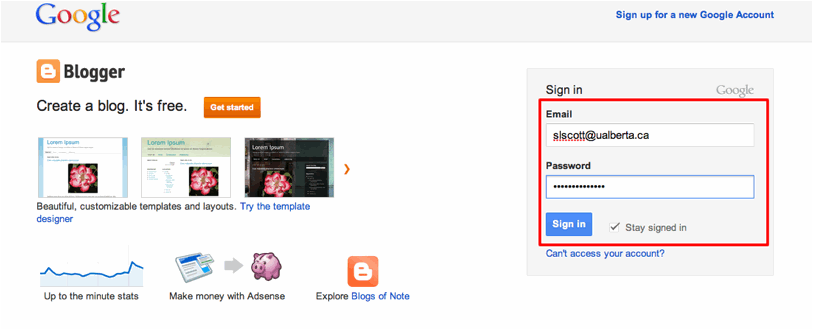
NOTE: You may be presented with another screen
at this point that indicates you need to click on Continue to log into this account. If so click on click on the Continue button and move on to the next
step.
· Finally (we hope) you will be presented with the U of
A log in screen. Type in your ID
and password one more time and click on Sign
in:
· Lastly you may be presented with a screen that prompts
you to choose a display name to confirm you account. If so type in your
desired screen name and continue onto the next step.
|
2. Create your new blog
and select a topic. Note that the
topic you select will dictate the type of content that you will be adding to
your blog later on in this lab. |
·
After you have
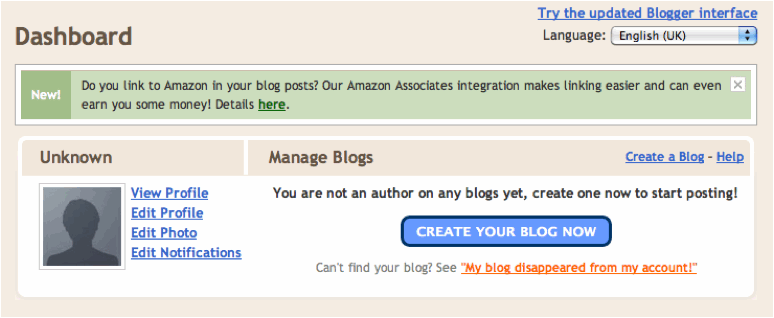
successfully paired your account you will arrive at your Dashboard. To begin creating your account click on
the Create Your Blog Now
button/link:
o
For the “Name you Blog” step type in the title for your new blog along with the web
address which will be used to access your blog and click on the Continue button
Note: This
blog title should reflect the nature of the topic you will be using for the
duration of this assignment e.g. “Felix’s
Science Blog”. In order to make
the finding of resources easier it is recommended that you pick a general
subject such as science, social studies or math as your given topic.
If you would like to find
resources for elementary and would like to complete a blog for the elementary
grade level then you can type in for example “Felix’s Primary Blog” or “Felix’s
Elementary Blog”.
Please use your own name and not Felix’s
for your official blog title.
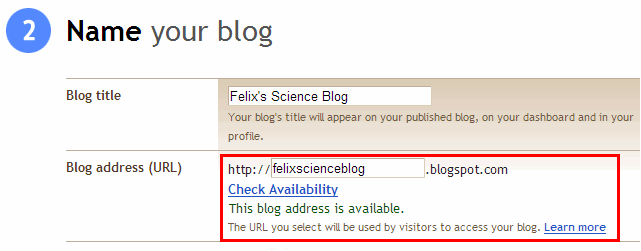
Hint: It may take you several tries to get a
working blog address you can help the process by clicking on the Check Availability link shown above.
o
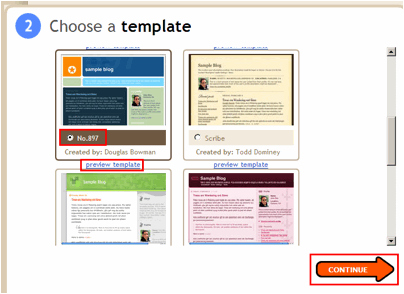
For the” Choose a
template” step feel free to browse
through the available templates.
o
To preview a
template click on the available preview
template links.
o
To select a
template click on the radio button for your chosen template and click on the continue arrow. Please note that if you do wish to
change your template at a later time you will be able to do so.
· After you click on the continue arrow you should see the following confirmation screen.
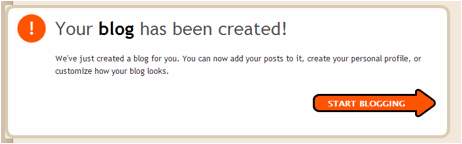
· This means your new blog has been created and that you
are now ready to either post messages, create your personal profile, or further
customize your blog.
· To post your first message click on the Start Blogging arrow and proceed to the
next step.
|
3. Post your first
message on your newly created blog. |
· After you finish creating your account and selecting a
template for your blog you will be able to add your first blog posting.
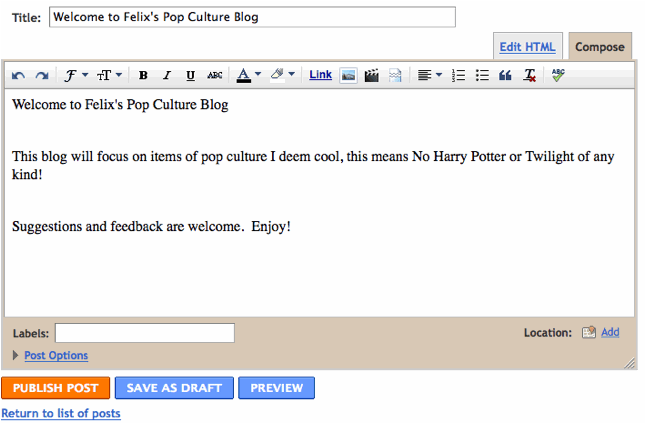
· Type in the following text but feel free to add in
some of your own text content to spice it up. Also you can format your text by
clicking and dragging to select the text and using the available formatting
options as highlighted below.
“
· Once you have finished typing your text and adding any
desired formatting options you can either preview your posting to see how it
would look it your blog or just post without previewing. It is recommended that you preview all your posting by clicking on the Preview link as highlight above.
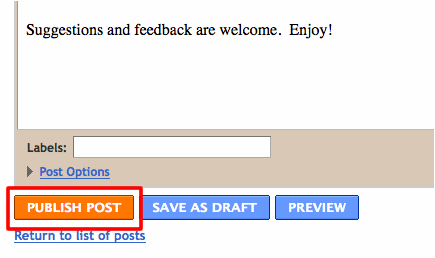
· Once the post has been previewed to post the message
to your blog click on the Publish Post button.
Hint: If you
want click on the available Post Options link as shown above you can choose
whether or not to allow user reading your blog to post comments. Comments will usually be post below the
original posting.
· Once you click on the Publish Post button you should see the following message:
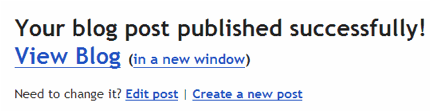
· To view your posting click on the View Blog link to edit your posting click on the Edit Post link.
|
4. Type in a blog
description to inform the readers of your blog what your blog is about. |
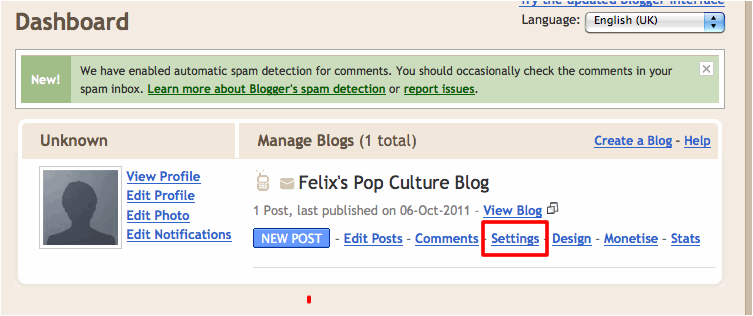
· To begin to type in a blog description single click on
the Settings link located below your
blog listing on your Dashboard as
shown below.
· Your screen should now appear similar to the image
shown below.
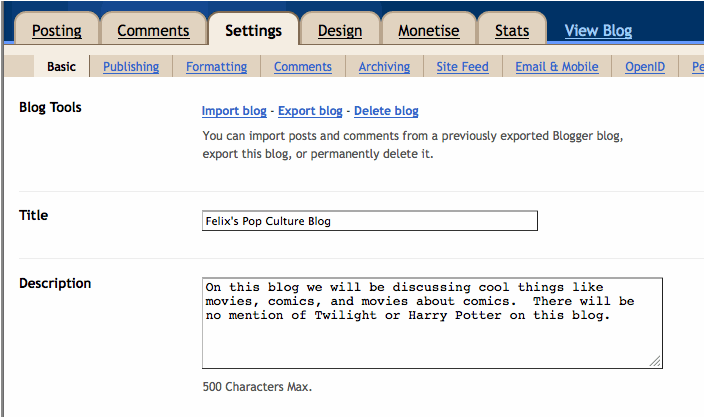
· Notice here that we are viewing the basic settings
page, however there are numerous other settings you can apply to your blog and
you are greatly encouraged to click on these links, i.e. Publishing, Formatting, Comments, etc. and test them out to see
what you can do with your blog.
· To type in a description single click anywhere inside
the Description dialogue box and
type in a one or two sentence description of your blog. You can include in your description that
your blog is being created for the EDIT 202 course and what topic you have
chosen.
· Once you have typed on your description scroll to the
bottom of the Settings window and click on Save
Settings, and then click on the Dashboard
link to return to your Dashboard.

©Steven
Scott & EDIT 202 Development Team
University
of Alberta