1. Your PC Requirements:
2. Windows Media Player Settings ( for both version 6.4 and 7.1/ Windows 2000/ Windows XP
3. Audio Settings
4. Viewing Full Screen for both version 6.4 and 7.1 /Windows 2000/ Windows XP
5. Viewing Video Segment for both version 6.4 and 7.1/Windows 2000/ Windows XP
6. Switching between Video Clips for both Windows version 6.4 and 7.1/ Windows 2000 /Windows XP
7. Anatomy of NUSlive webcast
8. Do and Don’t

9. Feedback & Help

1. Your PC Requirements:

Campus/ Home / Corporate viewers:
- 500 MHz Intel Pentium III processor or - 128MB of RAM
- Full Duplex sound card and speakers
- 800x600 video display with 16,000 colors (16 bit video) or higher
- Windows 98, Windows 2000, Windows ME, Windows XP
- IE 5.0 or later
- Minimum internet connection of 56k and recommend cable connection
- Netscape Communicator 4.77 or 4.78


2. Windows Media Player Settings for both version 6.4 and 7.1/ Windows 2000/ Windows XP

Home / Corporate viewers
Home dial-up users with 28.8K/56K modem will not be able to view video, but they will be able to hear the audio only. This is because all videos are encoded at 180K bandwidth (with a few at 384K bandwidth). Home viewers will have to connect to S-One network via ADSL modem or cable modem (or other broadband connection with at least 180K bandwidth). Currently ADSL modem service is provided by Singtel Magix and cable modem service is provided by Singapore Cable Vision (SCV). To ensure trouble-free viewing

In a dial up connection, if the audio distorts; hang up connect to the internet at a higher speed.

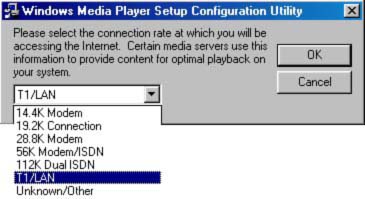
When windows media player version 6.4. is installed; Choose the following setting for connection .
Choose T1/Lan for campus ,56k for dial up connection.


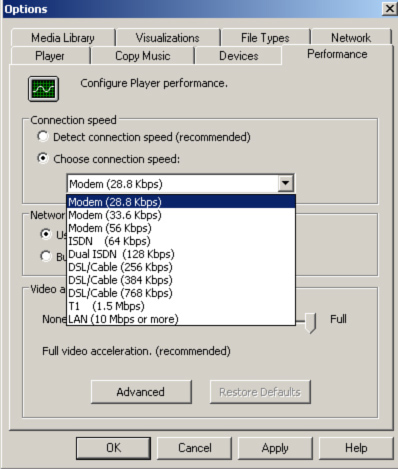
As for Windows media 7.1 setting, choose the first option in connection speed. Alternatively the setting can be manually changed.Modem being the lowest connection speed. LAN is the fastest speed.


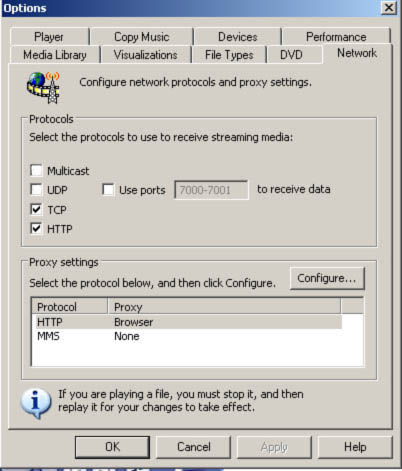
Another setting to be noted is the protocol setting found under option. Uncheck Multicast and UDP setting if there is a drop in frame.


Campus/ Home / Corporate viewers:

Using Windows Media Player for both version 6.4 and 7.1/ Windows 2000 /Windows XP

Basic controls


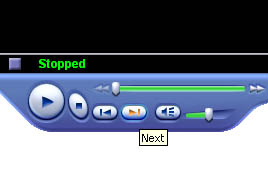
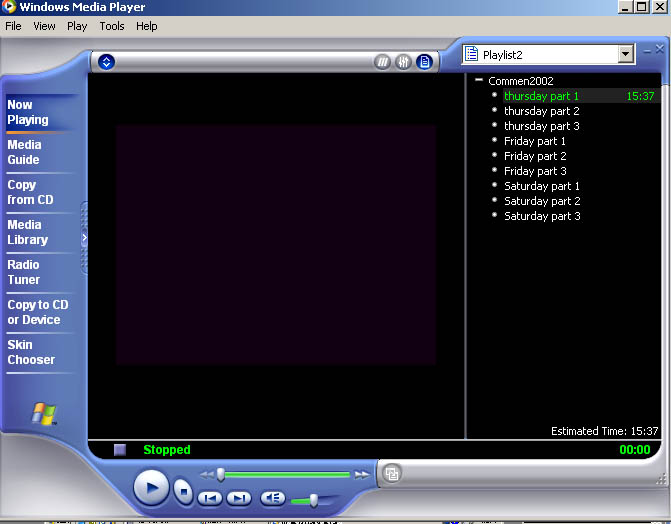
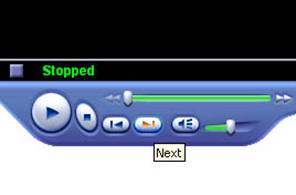
At the lower end of the player are the controls . The first button is play followed by Stop . The other buttons are next and previous where clicking on the buttons will bring you to another clip if there is any.The button with speaker icon and the slider controls the volume. Clicking on the speaker button mutes it.The slider on the top is the video content seeker.


3. Audio Settings

• Click on the Start button
• Select Settings/Control Panel
• Double-Click on "Sound and Multimedia"
• Select the "Audio" tab at the top of the pop-up screen.
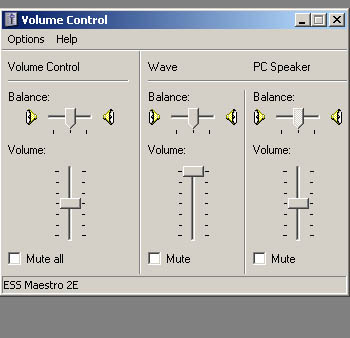
• Click on "Volume" to check your settings

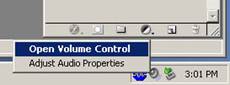
Alternatively, right click on the audio icon


verify that the volume is not muted.


4. Viewing Full Screen for both version 6.4 and 7.1 /Windows 2000/ Windows XP

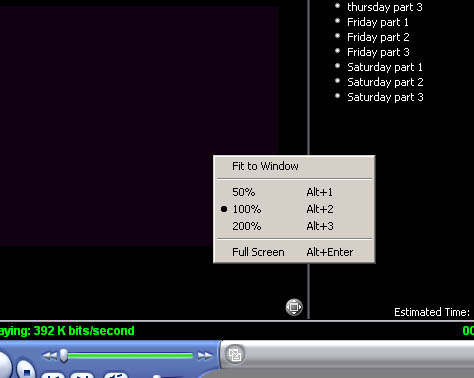
Right click on the video and choose full screen. There are options provided to control the size of the video namely double the size and half the size.


5. Viewing Video Segment for both version 6.4 and 7.1/Windows 2000/ Windows XP

If there more than one video segment in a video, It can be viewed by choosing the option if the video on the right.

In the above video, there are nine video segments to choose from.


6. Switching between Video Clips for both Windows version 6.4 and 7.1/ Windows 2000 /Windows XP


Click on the next button to view the next video clip.


7.Anatomy of NUSlive webcast


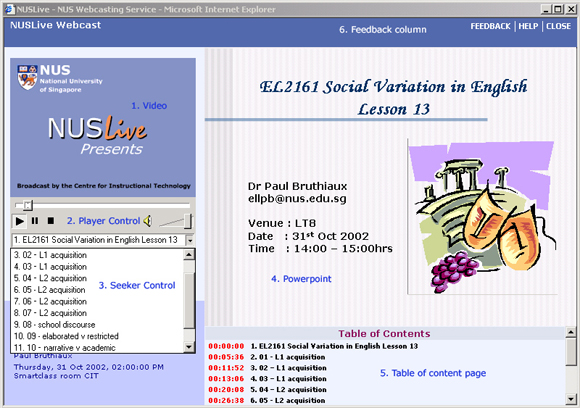
1. Video - The video is played here

2. Player Control - The audio volume control and player control .

3. Seeker Control - Viewers are able to jump to a certain topic in the video. This function is not available for ' live ' webcast.

4. Powerpoint - The powerpoint slides changes with the slide.

5. Table of content page - The table of content illustrates the heading of a topic. It is possible to navigate through here.


Nuslive webcast with camtasia

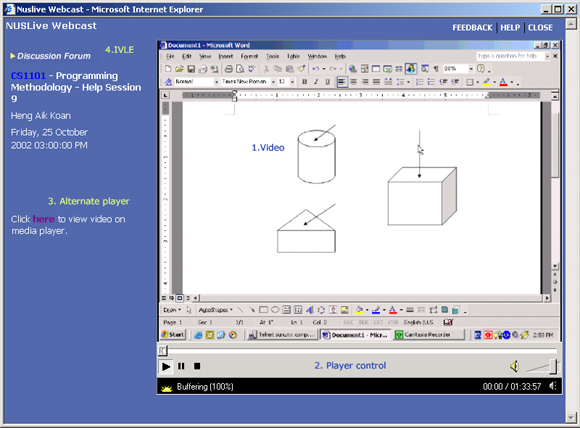
Certain application lectures such as programming and telnet are captured with Camtasia. The contents of such lectures are well delivered with Camtasia Screen Capture.

1. Video - The video is played here

2. Player Control - The audio volume control and player control.

3. Alternate Player - The video will not play if camtasia codec is not installed The PC in clusters will not allow codecs to be installed for security reasons. In that scenario, click on 'here' to launch media player

4. IVLE - Its the link to IVLE dicussion forum


8. Do and Don’t

• Don’t run other software programs at the same time. Each program consumes some processor time
• Don’t download other software from the internet.
• Do clear the internet explorer cache
• Do Disable filesharing like kaZaa


9. Feedback & Help

To improve our service ; please fill up our feedback form found in http://www.cit.nus.edu.sg/nuslive/. For more help or request , please contact Mr Sharin citsbms@nus.edu.sg.